Life Organised.

Famli tips

Keep Famli one tap away.

There is no Famli app to download. Famli runs in your browser, which means it works on whatever you already own and updates itself every time we improve it.


What you can do is save Famli to your Home Screen. After that it looks and opens exactly like any other app — one tap, straight in, no address to type and no bookmark to go hunting for. It takes about 30 seconds.

On your iPhone.

STEP 1
Open Famli in Safari​​

Open Safari and go to famli.global.

Safari is the one to use. Other browsers can open Famli perfectly well, but the Home Screen option either is not there or is hidden somewhere different — Safari keeps it simple.

STEP 2
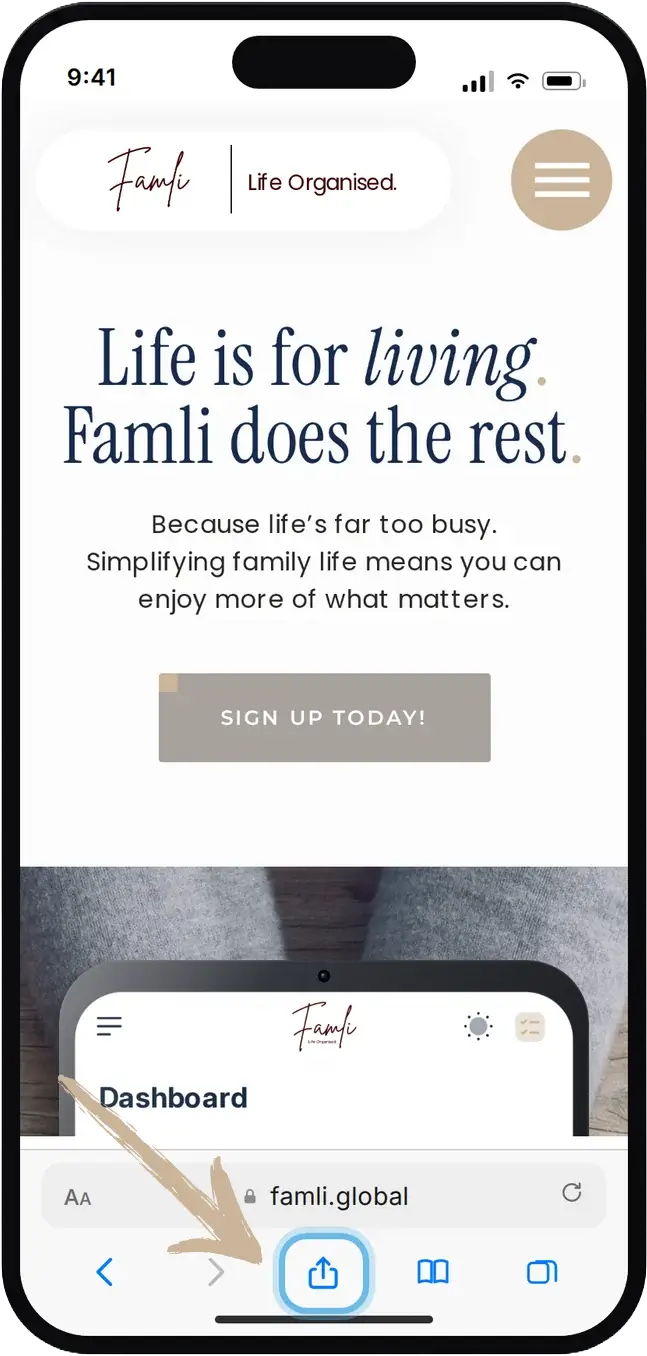
Tap the Share button​

Look for the Share icon in Safari’s toolbar — a square with an arrow pointing up out of it.

Depending on your settings and which version of iOS you are on, that toolbar sits either along the bottom of the screen or up at the top. Either way, the icon is the same.

STEP 3
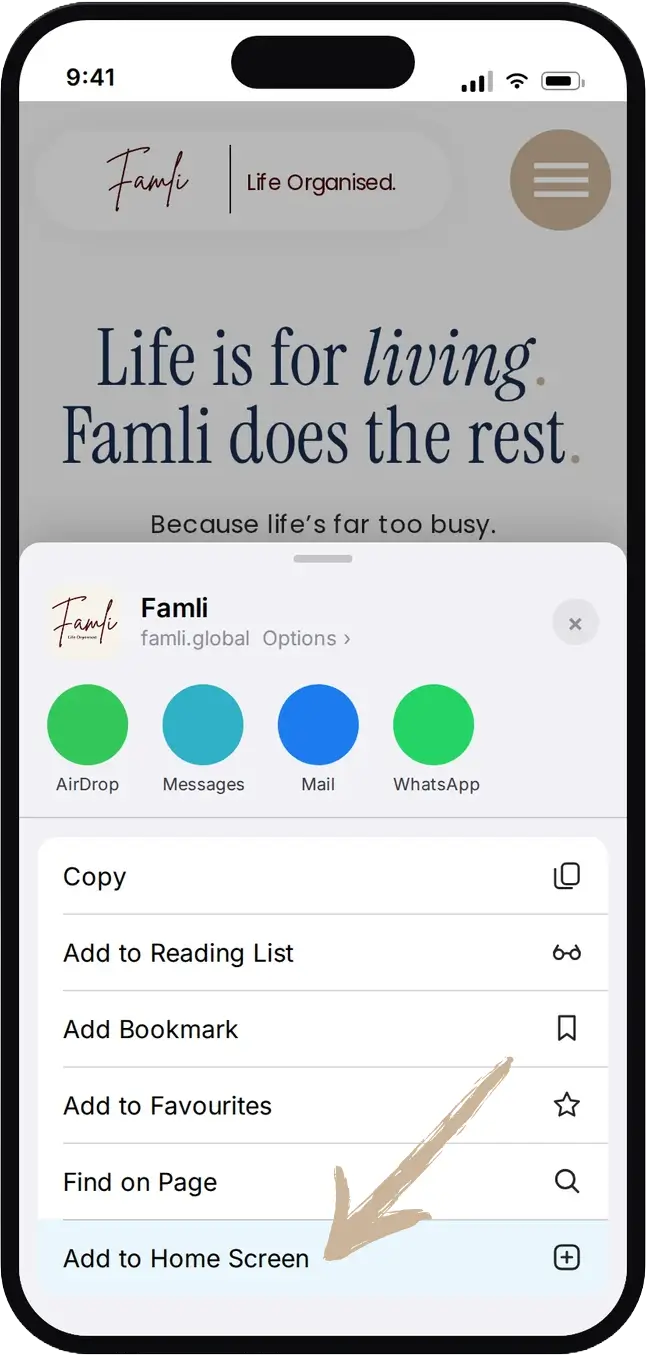
Choose Add to Home Screen

A menu slides up from the bottom.

Scroll past the sharing options until you find Add to Home Screen, then tap it.

STEP 4
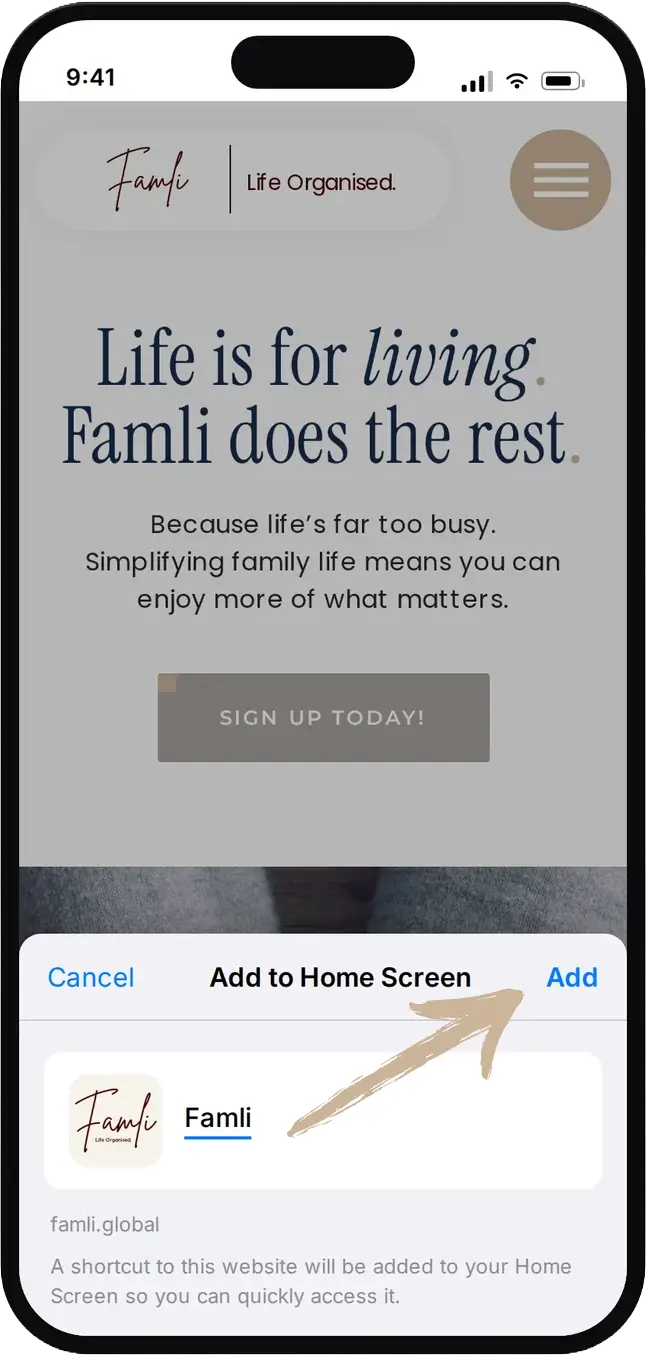
Give it a name and tap Add

An app-looking icon and name will pre-populate, but you can change these if you like.

Click Add in the upper right-hand corner of the active window.

STEP 5
That's It!

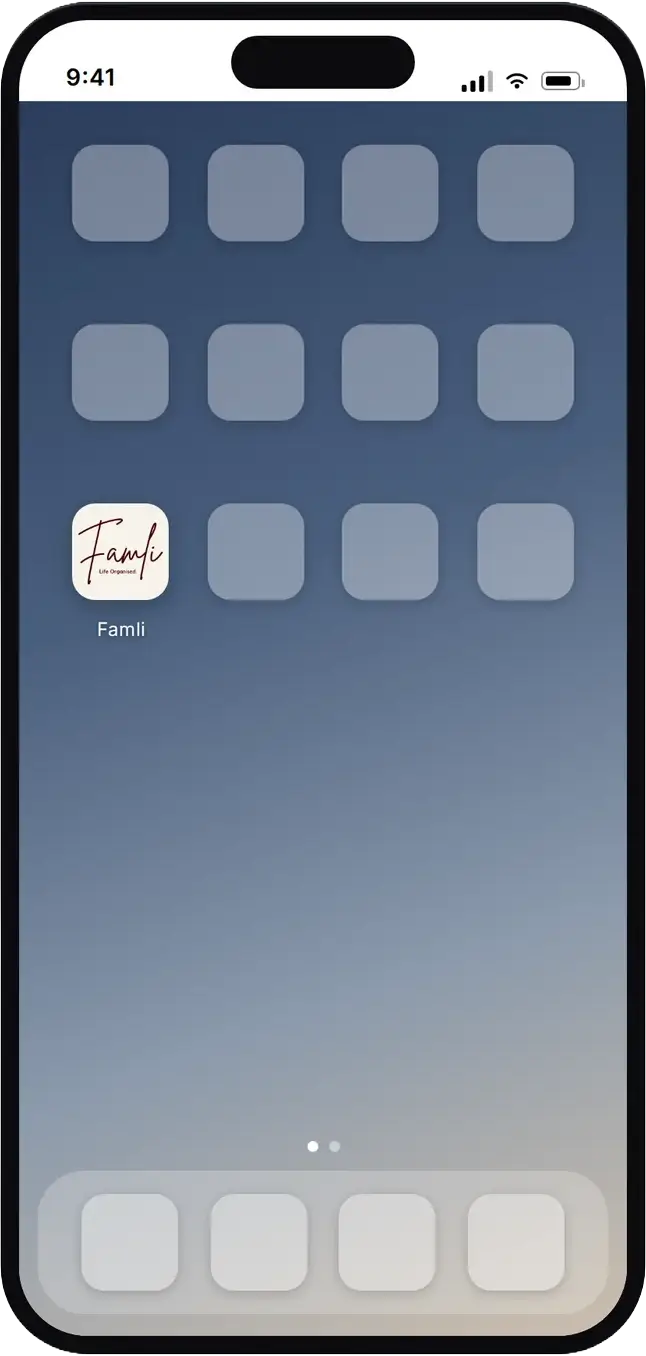
The Famli icon is now sitting on your Home Screen, ready whenever you are.

Press and hold it to drag it wherever suits you — plenty of people park it in the dock along the bottom, next to the apps they reach for most.

On your iPhone.

STEP 1

OPEN FAMLI IN SAFARI

Open Safari and go to famli.global.

Safari is the one to use. Other browsers can open Famli perfectly well, but the Home Screen option either is not there or is hidden somewhere different — Safari keeps it simple.

TAP THE SHARE BUTTON

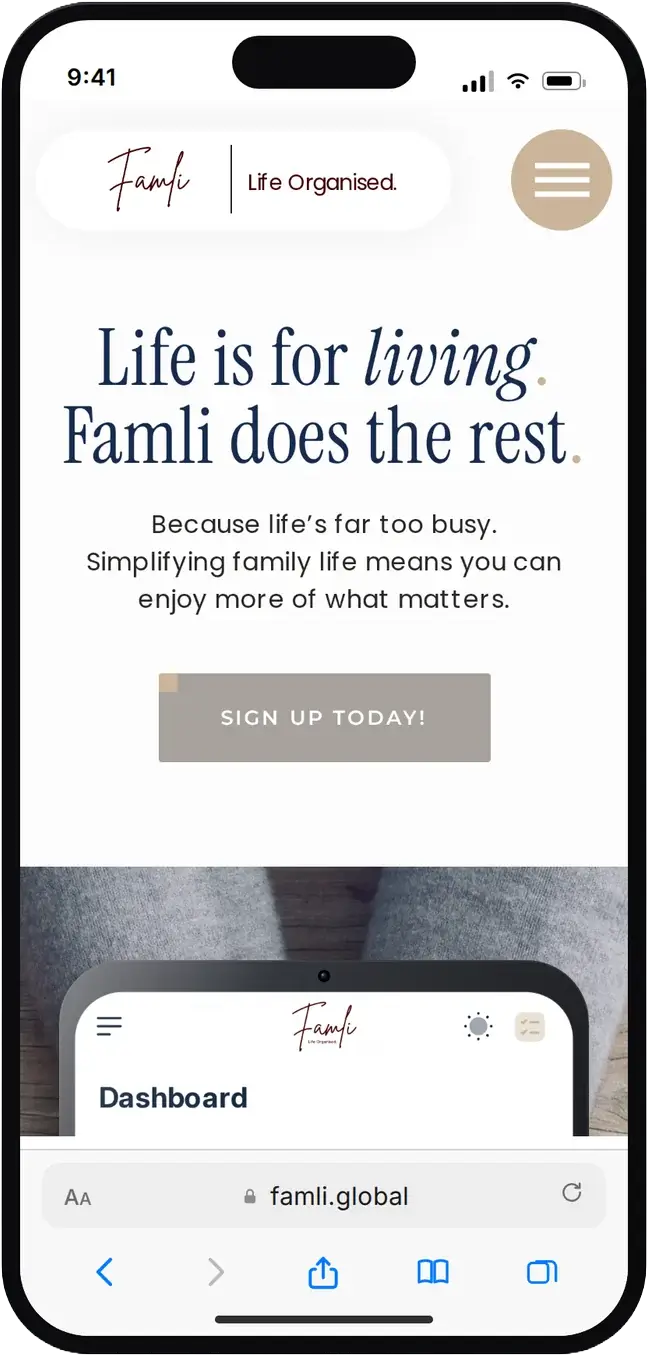
Look for the Share icon in Safari’s toolbar — a square with an arrow pointing up out of it.

Depending on your settings and which version of iOS you are on, that toolbar sits either along the bottom of the screen or up at the top. Either way, the icon is the same.

CHOOSE ADD TO HOME SCREEN

A menu slides up from the bottom.

Scroll past the sharing options until you find Add to Home Screen, then tap it.

GIVE IT A NAME AND TAP ADD

An app-looking icon and name will pre-populate, but you can change these if you like.

Click Add in the upper right-hand corner of the active window.

THAT’S IT!

The Famli icon is now sitting on your Home Screen, ready whenever you are.

Press and hold it to drag it wherever suits you — plenty of people park it in the dock along the bottom, next to the apps they reach for most.

On your iPAD.

STEP 1

OPEN FAMLI IN SAFARI

Same beginning: open Safari and go to famli.global.

TAP THE SHARE BUTTON

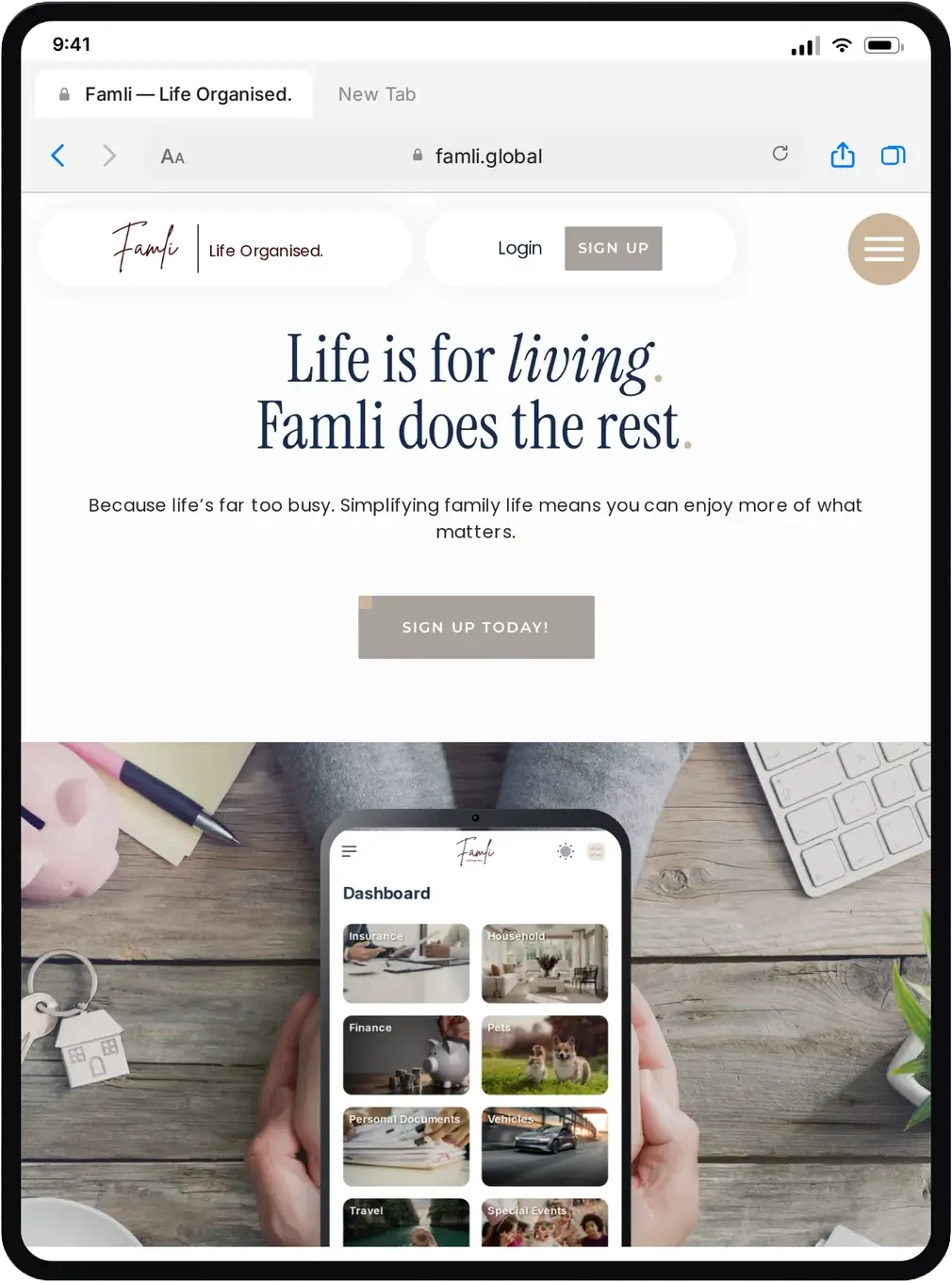
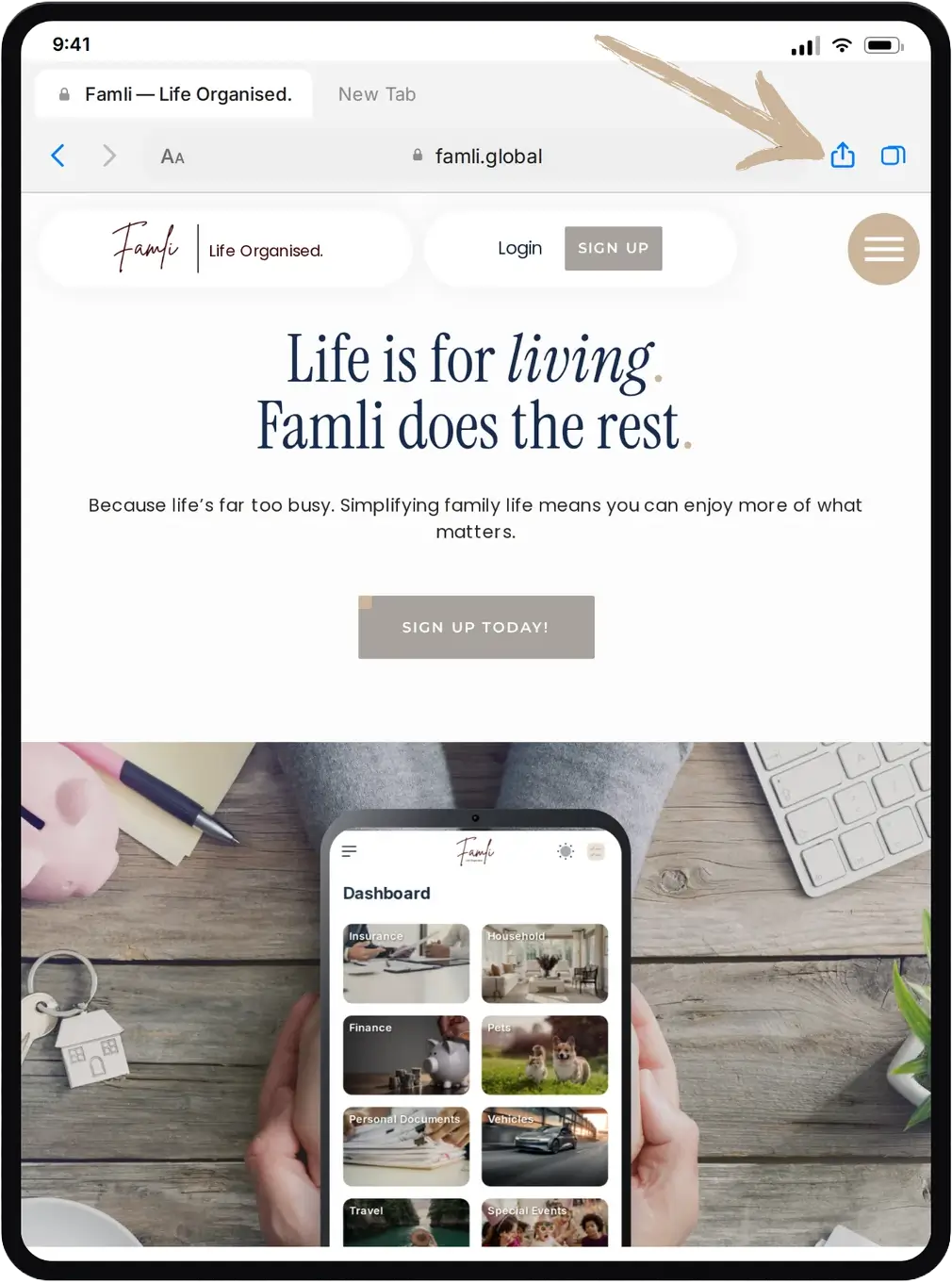
On iPad the toolbar runs along the top of the screen. The Share icon — the square with the arrow coming out of it — sits just to the right of the address bar.

CHOOSE ADD TO HOME SCREEN

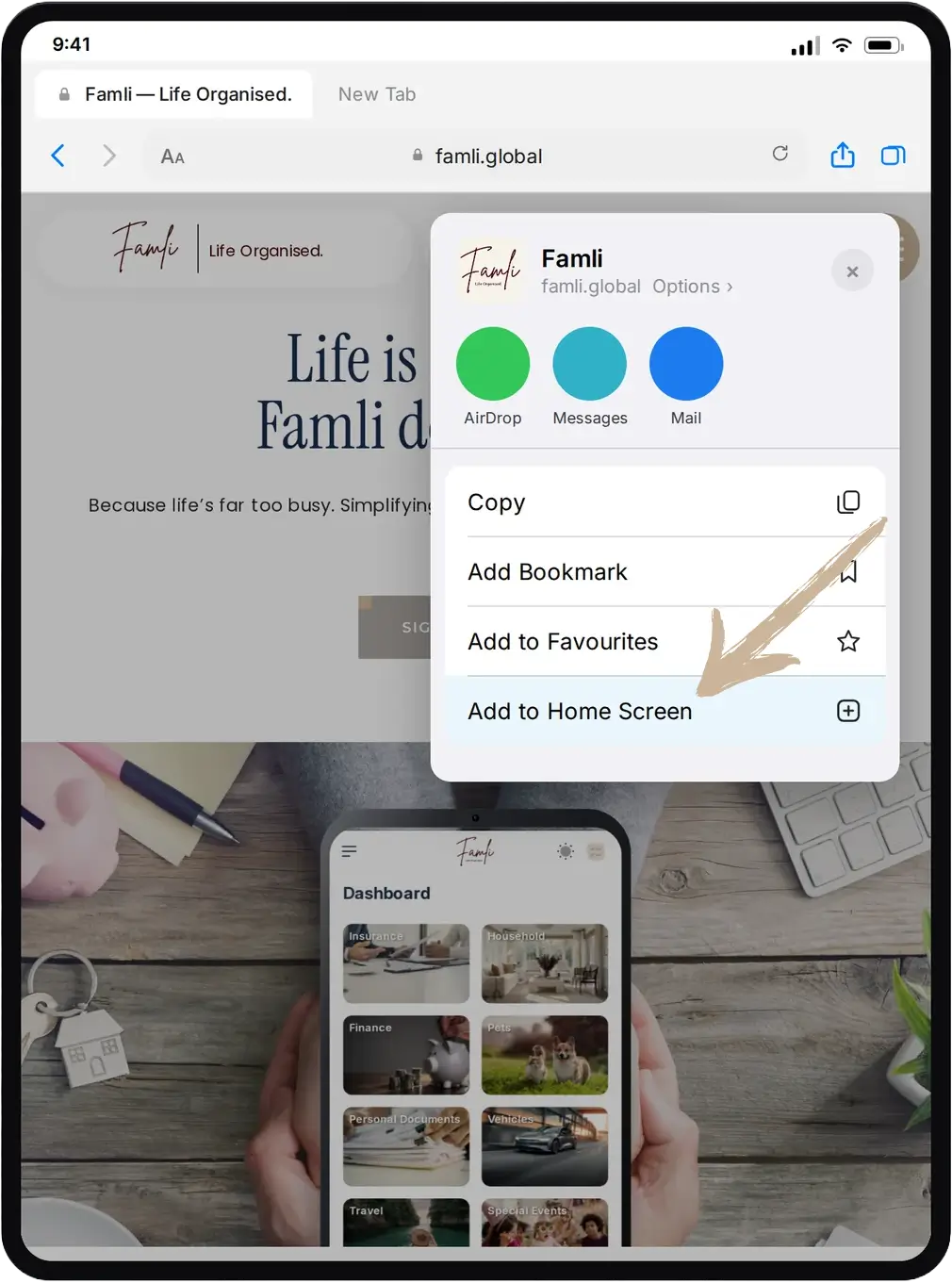
On iPad the menu appears as a panel rather than a sheet sliding up from the bottom, but the options are the same.

Tap Add to Home Screen, check the name, and tap Add.

THAT’S IT!

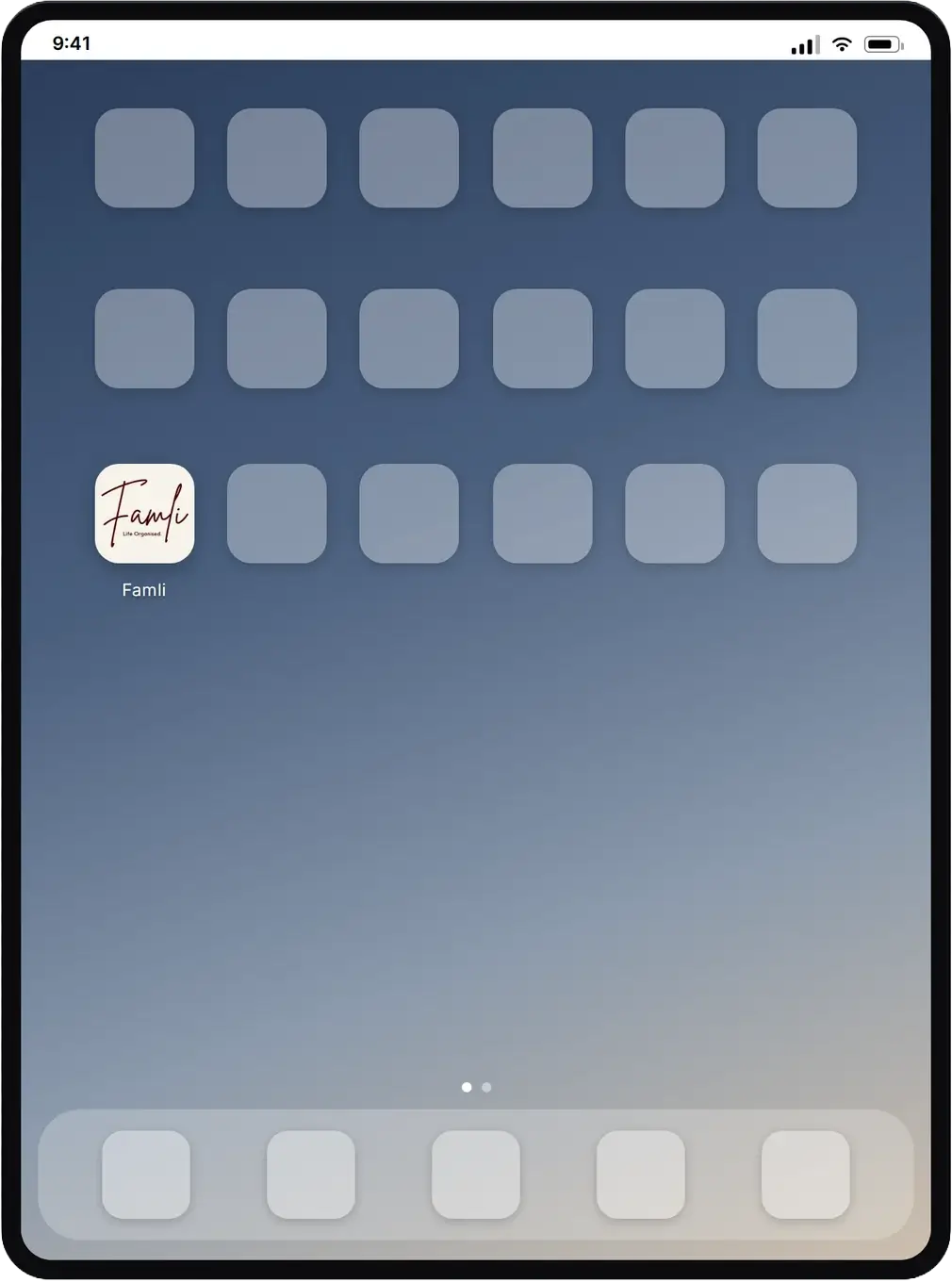
Famli is now on your iPad Home Screen, one tap away.

On your iPad.

STEP 1
Open Famli in Safari​​

Same beginning: open Safari and go to famli.global.

STEP 2
Tap the Share button​

On iPad the toolbar runs along the top of the screen. The Share icon — the square with the arrow coming out of it — sits just to the right of the address bar.

STEP 3
Choose Add to Home Screen

On iPad the menu appears as a panel rather than a sheet sliding up from the bottom, but the options are the same.

Tap Add to Home Screen, check the name, and tap Add.

STEP 4
That's It!

Famli is now on your iPad Home Screen, one tap away.

Good to
know.

Can’t see “Add to Home Screen”?

Check that you are in Safari rather than another browser, and that you are not in a Private tab. If the list looks short, scroll it — the option sits below the sharing shortcuts.

Nothing is being installed.

The shortcut is a bookmark with an icon on it. It uses almost no space on your device, and because Famli lives on the web you always get the current version — there is nothing to update.

You stay signed in.

Adding the shortcut does not sign you out. Tap the icon and you carry on where you left off.

On Android or Windows?

The idea is the same. Open Famli in your browser and look for Add to Home screen or Install in the browser’s own menu.

Not with us yet?

Famli is easy to join.

Navigate To
Navigate To
Navigate To